

You are able to change the visibility of your listings at anytime. Please make sure you become familiar with the different visibility settings on Storefront.
The following text will explain to you how to change the visibility setting of a listing via your account. You have full control over these settings.
Once you log into your account, you will click on the "Listings" tab in the top bar of the screen as shown in the Screenshot:
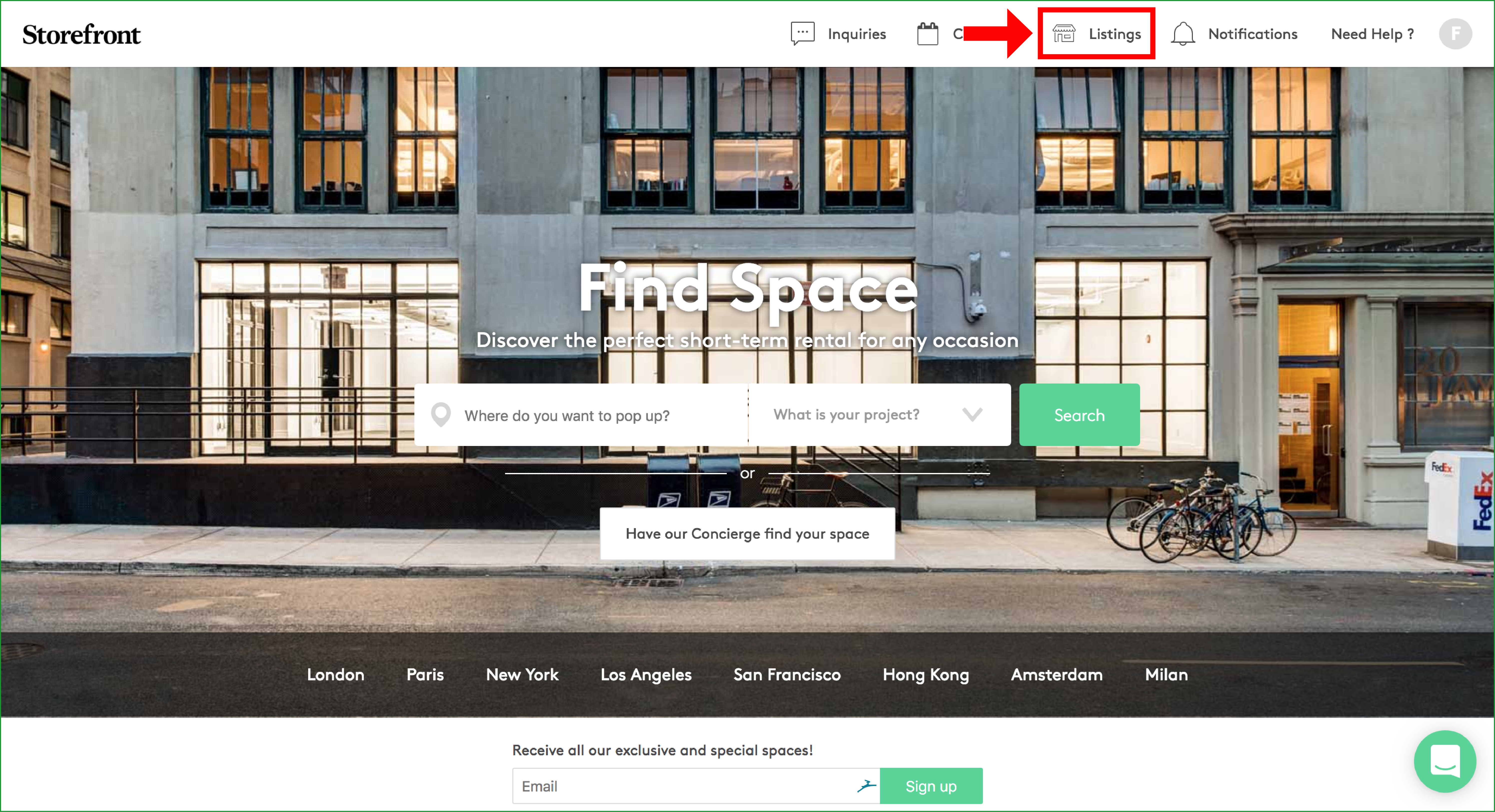
This page will display all your listings in this account on Storefront.
You will access the editing view of a single listing by clicking "Manage":
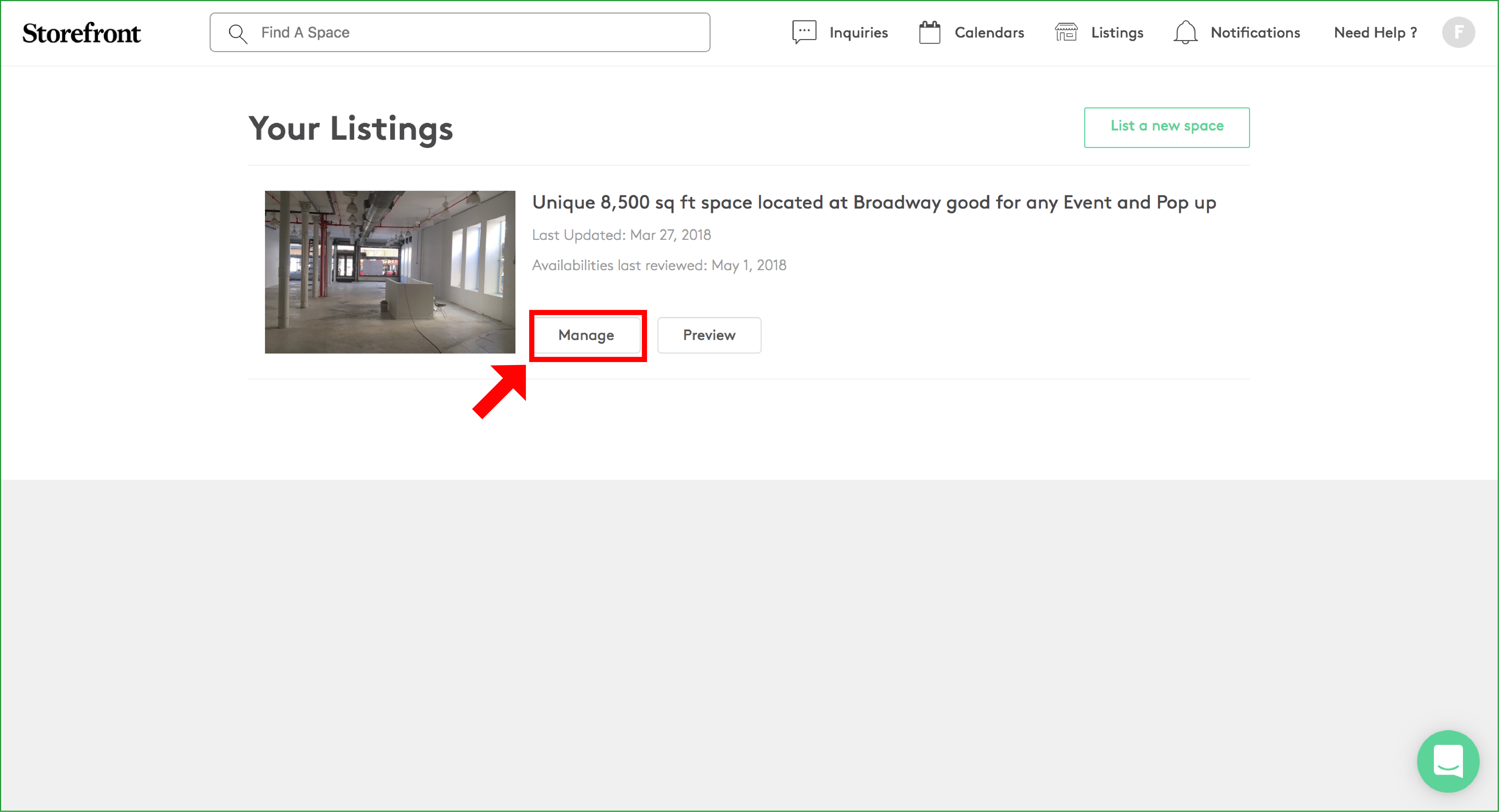
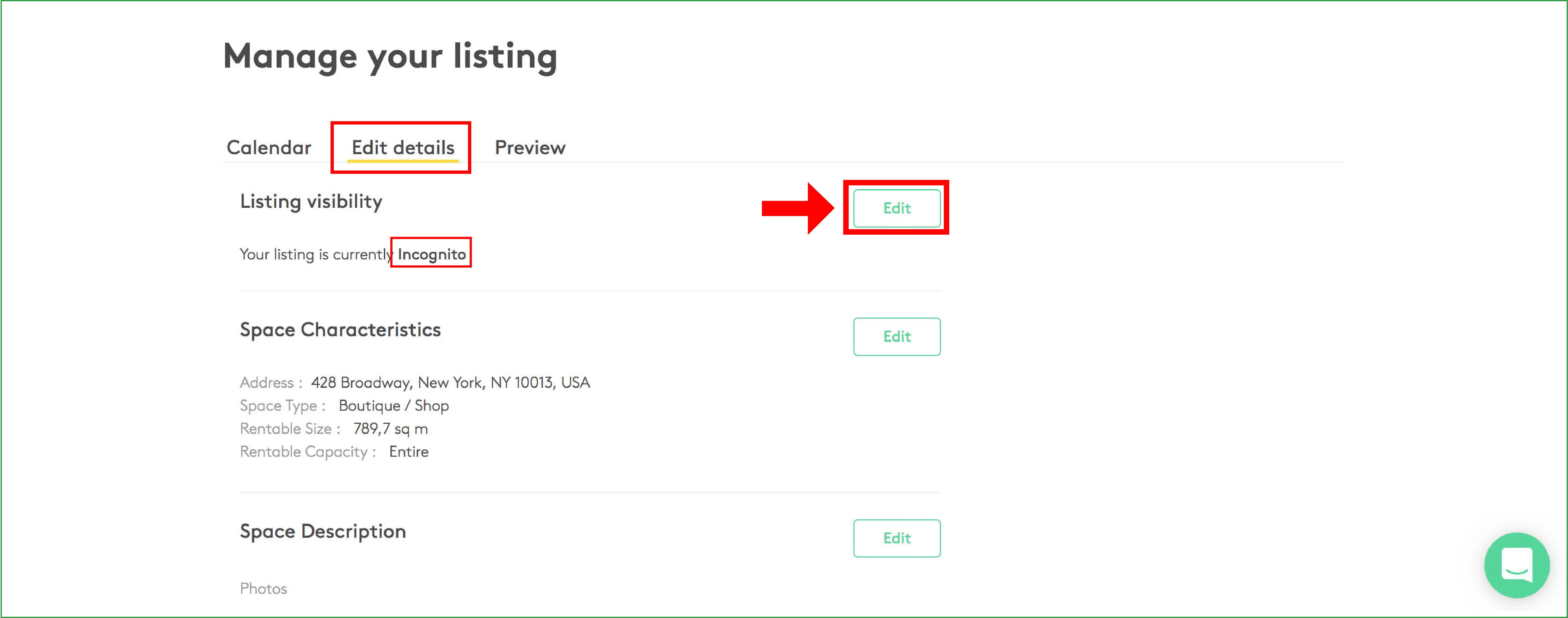
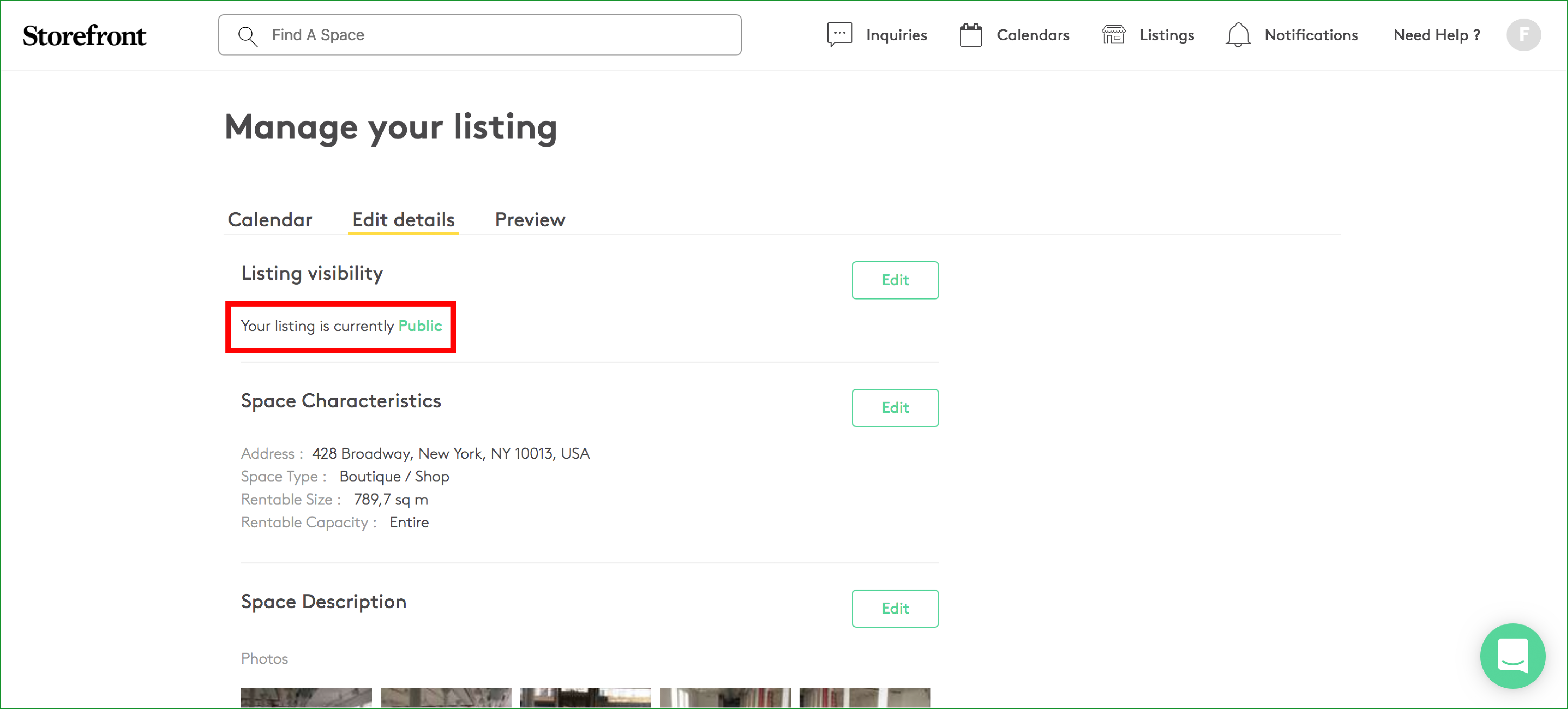
Now you can move in between the different settings on a listing. In order to make changes to the "Listing visibility", you will stay in the "Edit details" section. Here you can see that "Your listing is currently Incognito". You want to change the visibility status, so please click on "Edit" as shown in the Screenshot:
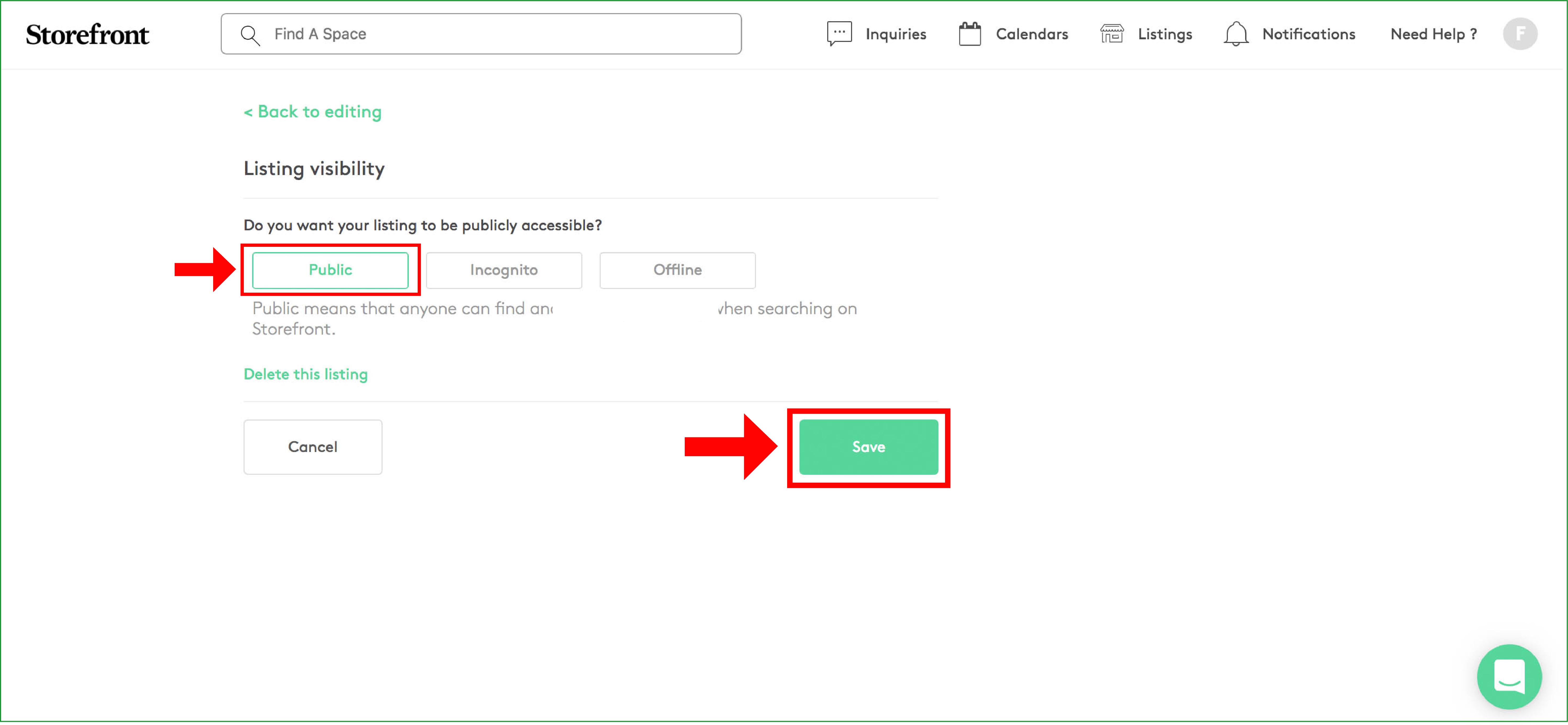
This view enables you to switch the listing visibility in 3 different ways.
Make sure to select "Public" as shown in the screenshot below. This is the only option to make your listing fully visible to renters.
Public - Public means that anyone can find and access your listing when searching on Storefront.
Incognito - Incognito means that only people with the link can find and access your listing on Storefront.
Offline - Offline means that only you can find and access your listing.
After you have selected the visibility status you want, you will have to "Save" the new setting as shown in the screenshot:
You have now successfully changed the visibility status of your listing. Instead of it being an "Incognito" listing, it is now "Public" and fully visible to over 100,000 global brands and retailers looking for space via Storefront.
Feel free to reach out to our Support Team directly, if you have more questions.
We are happy to help! :-)